How to Use a ChargePoint Charger
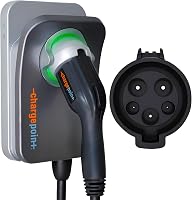
Here's how to use a ChargePoint charger: plug the J1772 connector fully into your car and let the charger handshake begin, then open the ChargePoint app to start or schedule the session. The light ring shows the state, so you always know whether it's charging, waiting, or done.
On this page (9 sections)
- How do you use a ChargePoint charger for the first time?
- How do you plug in and start a charging session?
- What does the light ring tell you?
- How do you schedule charging and track a session?
- How do you stop a session and unplug safely?
- Which ChargePoint HomeFlex should you use at home?
- What should you check after the first week?
- How do you use a ChargePoint charger away from home?
- The short version of using a ChargePoint charger
Here's how to use a ChargePoint charger: plug the J1772 connector fully into your car and let the charger begin the session, then use the ChargePoint app to start, schedule, or monitor the charge. The light ring on the unit tells you the state at a glance, so you don't have to guess.
Once the unit is installed and set up, daily charging takes less than a minute. Most of the work happens in the app the first time, and after that the routine is plug in, confirm the light, and walk away.
How do you use a ChargePoint charger for the first time?
Install the app, connect the charger to WiFi, and add your vehicle before your first session. The app is where ChargePoint puts the setup steps, account login, and station details, so start there.
Plug the connector into your car only after setup is complete. The charger needs WiFi for certain features and for some troubleshooting steps, so join your home network while you're standing next to the unit.
The app also shows nearby public stations, which is handy for checking that your account works before you rely on it at home. Give the first session a few minutes of attention so you can see the light ring change from ready to charging.
What do you need before the first charge?
You need a working 240V circuit, the ChargePoint app, and your car's charge port within reach of the cable. A hardwired HomeFlex needs a 50A circuit, while the NEMA 14-50 version plugs into a 14-50 outlet on a 40A or 50A circuit.
An electrician should handle the install, including breaker and wire sizing. The HomeFlex can be mounted indoors or outdoors and has a 23-foot cable, which covers most garage layouts.
How do you plug in and start a charging session?
Push the connector straight into the port until it latches, then start the session in the app or let the charger start it automatically. A full seat matters more than speed here.
Line up the connector with the port before pushing. Don't twist or force it; the keyed shape only fits one way.
When it seats, you'll hear a click and the car usually confirms the connection.
Open the ChargePoint app and tap to start charging if the session doesn't begin on its own. The app shows live data and charging info, and you can set reminders so you remember to plug in on busy days.
If you drive a Tesla or another NACS car, the J1772 handle won't fit the port directly. The Lectron adapter bridges the two and is rated to 80A at 240V.
What does the light ring tell you?
The light ring is the charger's status light, and it changes color or pattern as the session moves from ready to charging to complete. Learn the three main states and you'll rarely need the app to check progress.
When the ring shows ready, the charger is waiting for a car. During charging it shows an active pattern.
When the battery is full, it settles into a complete state.
If the ring shows an unusual pattern, open the app first. The app surfaces the latest features and status info, and WiFi connectivity is part of several troubleshooting steps.
Unplugging and reseating the connector solves many simple faults.
How do you schedule charging and track a session?
Set a schedule in the app so the car charges in the hours you choose, then let the session run without watching it. Scheduling is the main reason to keep the app installed.
The ChargePoint app manages reminders, connects to smart home devices, and shows charging data. That data helps you see how much energy each session used and how long it took.
Scheduling also lets you line up charging with cheaper electricity rates if your utility offers them. The charger itself still needs a full connector seat and a healthy circuit; the app just decides when power flows.
For the full picture on running costs and hardware prices, see how much a ChargePoint home charger costs.
Can you charge without the app?
Yes. In most setups you can plug in and the session starts without opening the app.
The app is still worth installing for scheduling, reminders, data, and station finding.
If a session won't start on its own, the app is the first place to look. It confirms the charger's connection and shows what the unit is waiting on.
How do you stop a session and unplug safely?
End the session in the app or from the car, wait for the light to show it's finished, then press the release latch and pull the connector out. Stopping first protects the latch and the port.
Don't yank the connector while the car is still drawing power. Press the latch on the handle, then pull straight back.
Hang the connector on its holder so the pins stay clean.
Coil the cable loosely rather than wrapping it tight around the unit. The HomeFlex cable is cold-resistant, but sharp bends still stress the conductors over time.
Which ChargePoint HomeFlex should you use at home?
Pick the hardwired HomeFlex if you want the fastest home charge, and the NEMA 14-50 version if you already have a 14-50 outlet. Both use the same app and the same J1772 connector.
The hardwired model charges up to 45 mi/hr depending on your vehicle and needs a 20A or 80A circuit, according to ChargePoint. Its adjustable current ranges from 16A to 50A, and it's UL-certified and Energy Star rated.
The plug-in HomeFlex tops out at 40A on a 14-50 outlet, which still beats a 120V outlet by a wide margin. If you're still choosing hardware, our guide to the best EV chargers for home compares the main options.
You can also compare 40 amp EV chargers and 48 amp EV chargers if you're sizing a new circuit.
Who should choose each version?
Choose the hardwired HomeFlex for a new install where you want the fastest charge. Choose the NEMA 14-50 version when the outlet already exists and you'd rather not run new wiring.
Both are J1772 units, so a Tesla needs the Lectron adapter. The adapter supports Level 1 and Level 2 charging and carries an IP67 rating for outdoor use.
What should you check after the first week?
Look at the app's charging data and confirm the connector seats easily every time. A week of normal use shows whether your schedule, cable routing, and parking spot all work together.
Check that the cable isn't pinched in the garage door or under a tire. Wipe the connector pins if they look dusty, and keep the unit's vents clear if it's mounted outside.
If sessions stop early or the light shows a fault, check WiFi first and reseat the connector. ChargePoint offers 24/7 support and access to its public network of more than 274,000 stations across North America and Europe.
How do you use a ChargePoint charger away from home?
Use the app to find a station, then follow the prompts on the station screen to start and pay. Your ChargePoint account works across the network, including roaming partner stations.
Public sessions often need a tap of the app or a card at the station. The connector type varies, so check that the station offers J1772 for a non-Tesla car or an adapter for a Tesla.
Home charging stays the cheapest and simplest routine. Public stations are for top-ups on the road, not the daily habit.
Treat the home unit as your default and the network as backup.
The short version of using a ChargePoint charger
Using a ChargePoint charger comes down to a simple loop: plug in fully, confirm the light ring, let the app handle scheduling and data, and stop the session before unplugging. Set it up once and the daily routine takes seconds.
If you're buying hardware, start with the hardwired HomeFlex for speed or the NEMA 14-50 version for an existing outlet. Add the Lectron adapter if your car uses NACS.
Then read how much a ChargePoint home charger costs before you book the electrician.
Frequently asked questions
Do I need the ChargePoint app to charge my car?
No. Plug the connector into your car and the charger starts a session on its own for most setups.
The app adds scheduling, reminders, charging data, and the station map, so it's worth installing for daily use.
Can I leave the connector plugged into my car overnight?
Yes. The charger stops sending power when the battery is full, so an overnight plug-in is normal.
Just make sure the connector is seated fully and the cable isn't pinched in a door or under a tire.
What does the light ring on the charger mean?
The light ring signals the session state, such as ready, charging, or complete. A solid color means the charger is working normally, while a pulsing or unusual pattern usually means it's waiting for the app or needs attention.
Can I use a ChargePoint home charger with a Tesla?
Yes, but the HomeFlex uses a J1772 connector, so a Tesla needs a J1772 to Tesla adapter. The Lectron adapter in this guide plugs into the J1772 handle and connects to the car's NACS port for Level 2 charging.
How do I stop a charging session?
Press stop in the ChargePoint app, or end the session from the car's screen if it offers one. Wait for the light ring to show the session is finished, then press the release latch and pull the connector out of the port.